DriveTracker saves your drives and puts them on a map. This update makes it easier to find your old records.
Search by Location
Type a place name in the drive history screen to find records.
Can't remember where you went? Now you can find it straight away.
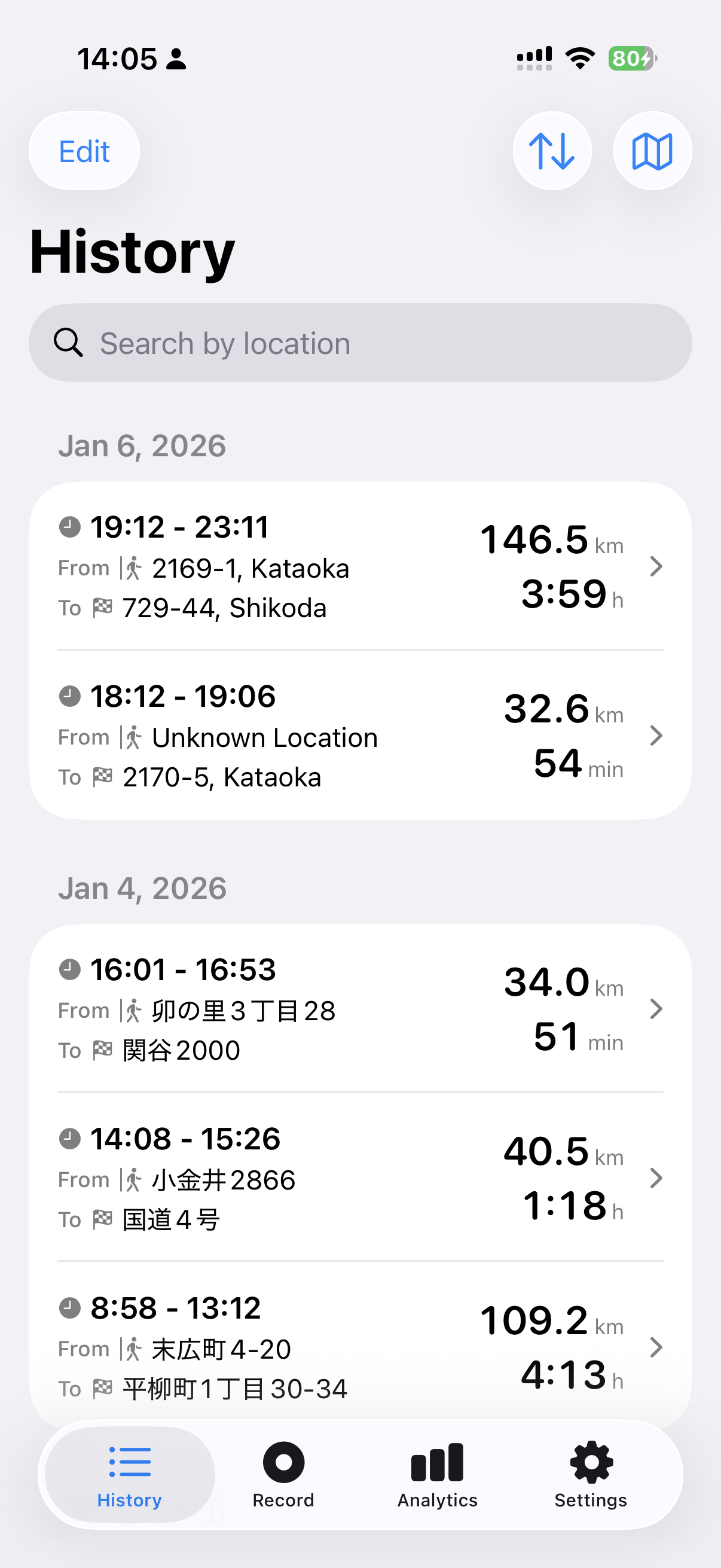
Search works for both departure and arrival locations.
Type "Shibuya" and you'll see records leaving from Shibuya and arriving at Shibuya.
Export to KML Files
You can now export records as KML files.
KML is a file format that Google Maps can open.
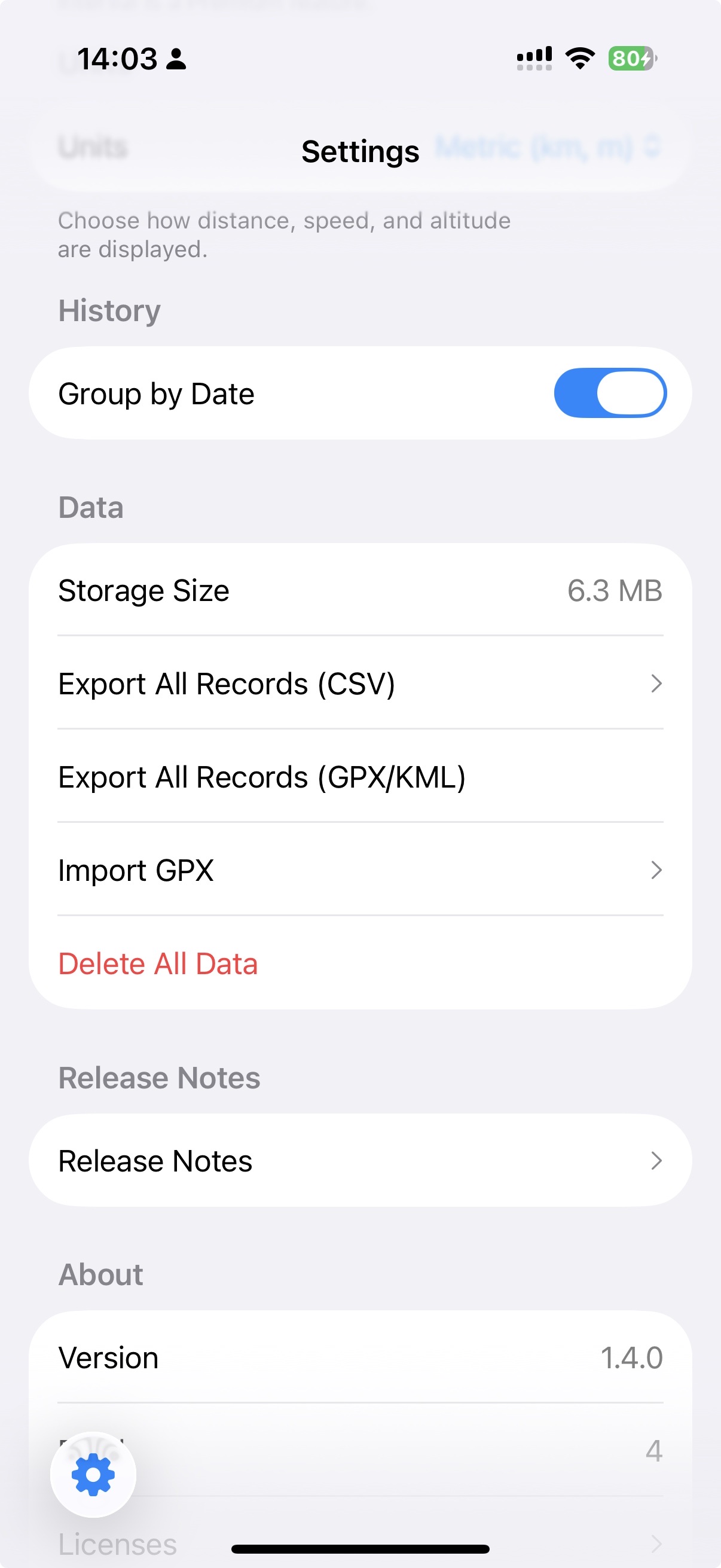
Open exported records in Google Maps on your computer's browser.
Go to "My Maps", select "Import", and choose your KML file.
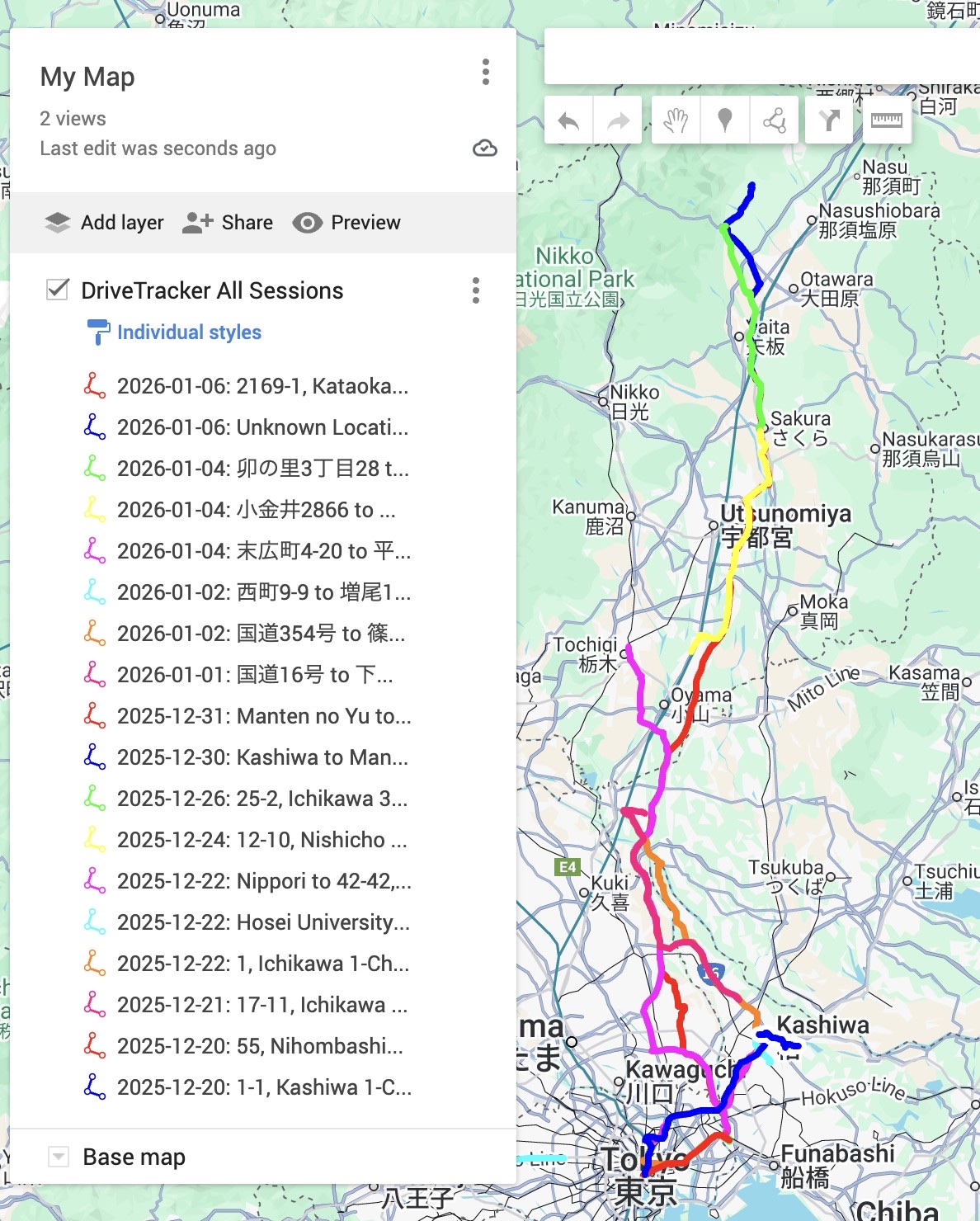
Once your records are in Google Maps, you can share work drives or save trip memories.
Note: KML import only works in the browser version of Google Maps on a computer. You can't import on the Google Maps mobile app, but you can view imported maps on your phone.
Update the app and give it a go!