About this hint
This hint explains Auto-Start Recording with Bluetooth or CarPlay for the DriveTracker - Driving Log app.
Topics covered: shortcuts, bluetooth, carplay, automation
Auto-Start Recording with Bluetooth or CarPlay
Ryu ·
You can have DriveTracker automatically start or stop recording when a specific Bluetooth device connects — or when CarPlay kicks in. All it takes is a quick automation in the Shortcuts app.
1. Create a New Automation
Open the Shortcuts app and go to the Automation tab. Tap the + button in the top-right corner.
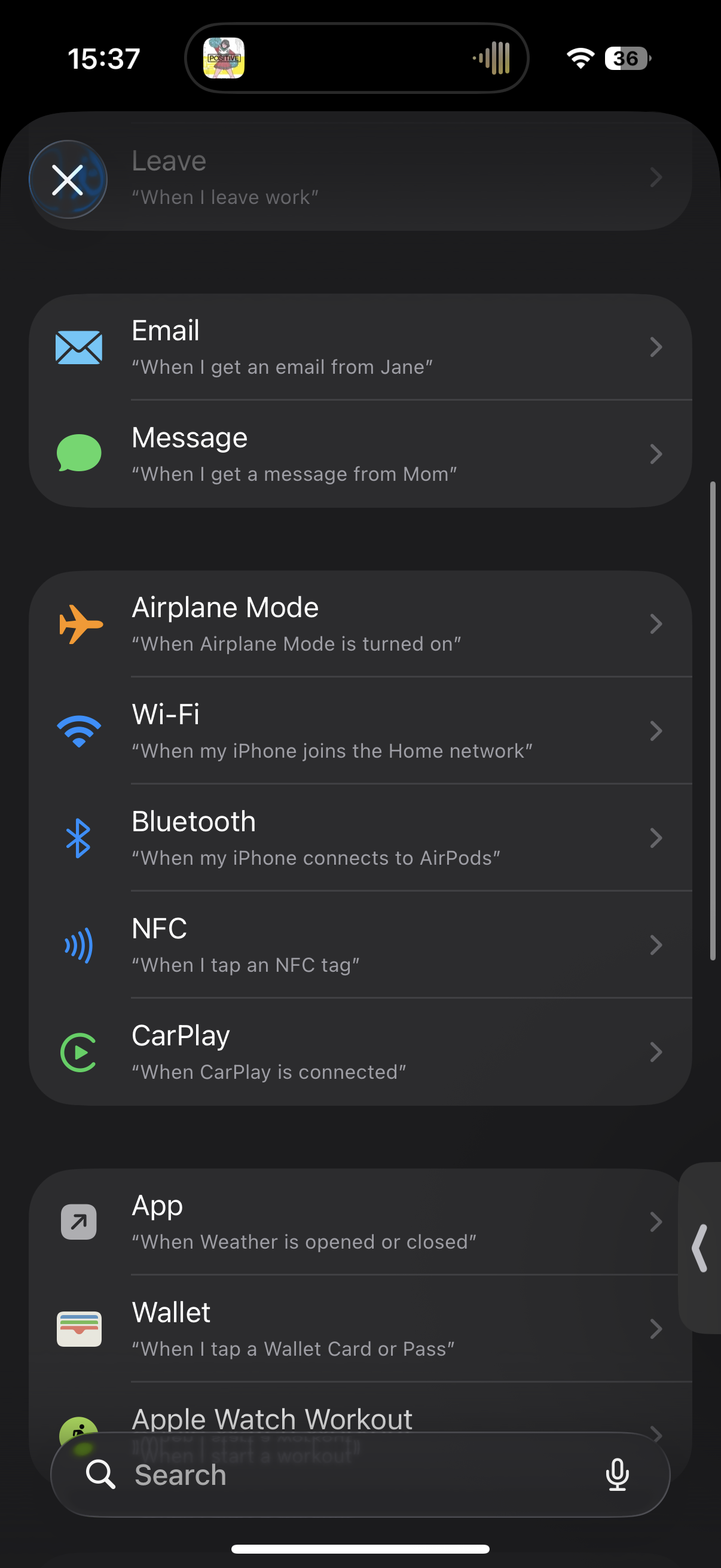
2. Choose Bluetooth or CarPlay
You’ll see a list of triggers. Bluetooth and CarPlay are both available here. Tap the one you want — this guide uses Bluetooth as an example.
3. Set the Trigger Conditions
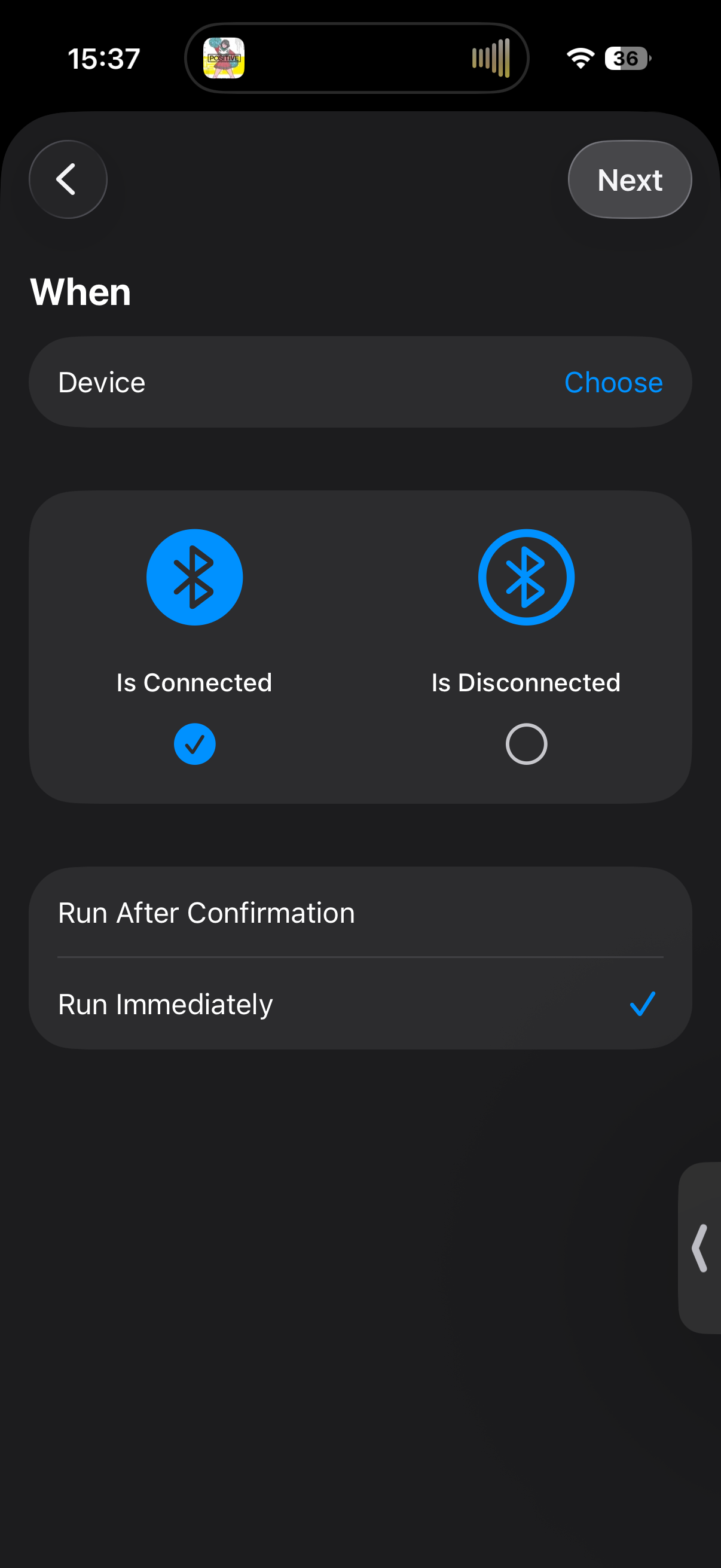
Pick the device you want from the Choose menu, then select whether the automation should fire on Connect or Disconnect.
You can also choose Run Immediately to skip the confirmation prompt, or Run After Confirmation if you’d rather approve each time.
4. Add DriveTracker Actions
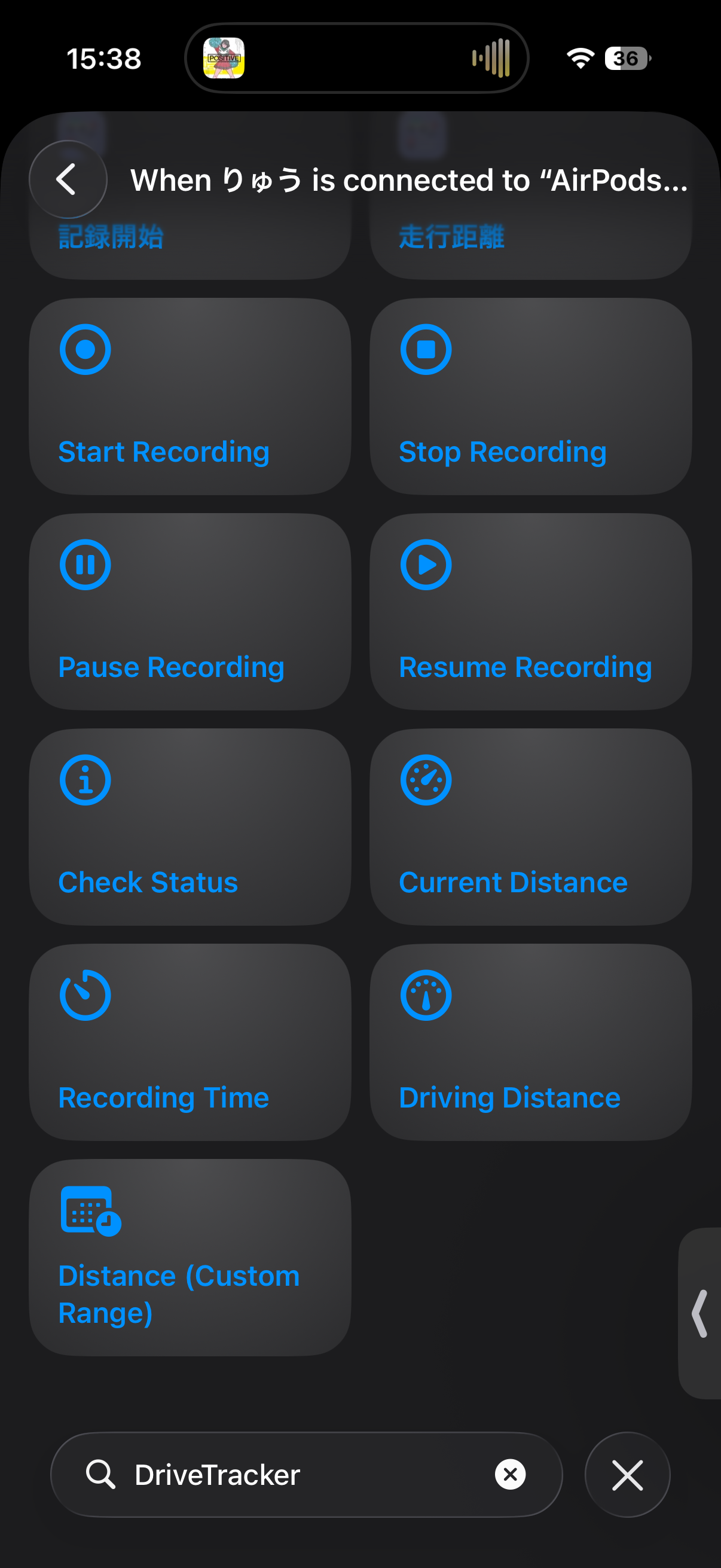
Tap Next, then search for DriveTracker in the search bar. You’ll see actions like Start Recording and Stop Recording — pick the one you need and you’re done.
If It Doesn’t Work
If the automation triggers but DriveTracker doesn’t respond, check whether your iPhone is locked. iOS may block the automation from reaching the app while the screen is locked. Unlock your phone and try again — that usually fixes it.